

← Help · For treasurers
Xero
If your club keeps its books in Xero, Fstop can send each membership year's subs straight in: every member's sub as an invoice, and each payment recorded against it. No more typing them in or importing files.
 Play: Membership and subs 3½ min
Part 3, Books and reports, shows sending subs to Xero, the CSV files and the PSNZ fee (3½ minutes, captions).
Before you start
- Who: the treasurer, signed in to Xero as someone who can manage the club's organisation (an adviser or standard user with invoicing).
- In Xero, note: the sales account subs go to (often 200, Sales, or a "Subscriptions" account), and the bank account members pay into (its code, for example 090). Both are in Xero under Accounting → Chart of accounts.
- GST: whether the club is GST registered. Most camera clubs aren't.
- Time: about 5 minutes, on a computer.
1. Set the account and tax type
In Fstop, open Subs and scroll to Renewal settings:
| Xero sales account code | The account subs are income in, for example 200. |
|---|---|
| GST | Not GST registered (Xero's No GST rate) for most clubs; GST registered (15% GST on Income) if the club is. |
Press Save. (The same settings are used by the Xero CSV files.)
2. Connect Xero
- On the Xero card in Subs, press Connect Xero. Xero's sign-in page opens.
- Sign in with your Xero login. Xero shows what Fstop is asking for: your club's contacts, invoices and payments, nothing else.
- In the list at the top, choose the club's organisation (check it's the club's, not your own business's), then press Allow access.

You're brought back to Subs, and the card says Connected to your organisation.
3. The bank account for payments
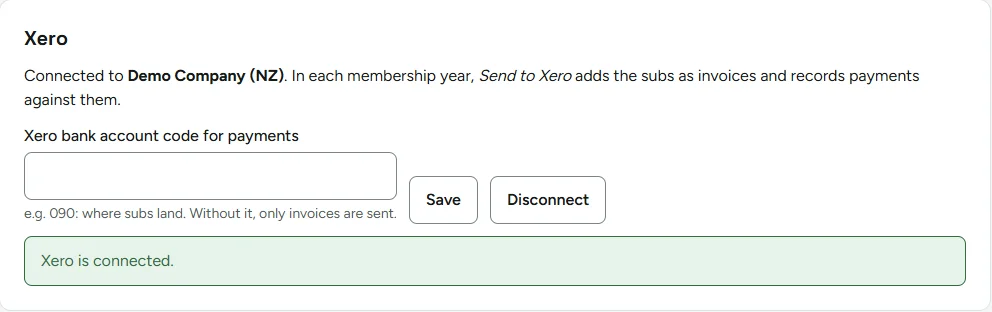
On the Xero card, type the code of the bank account members pay into (for example 090) and press
Save. Without it, Fstop sends the invoices but not the payments.
4. Send a year's subs
- In Membership years, open the year (for example 2027).
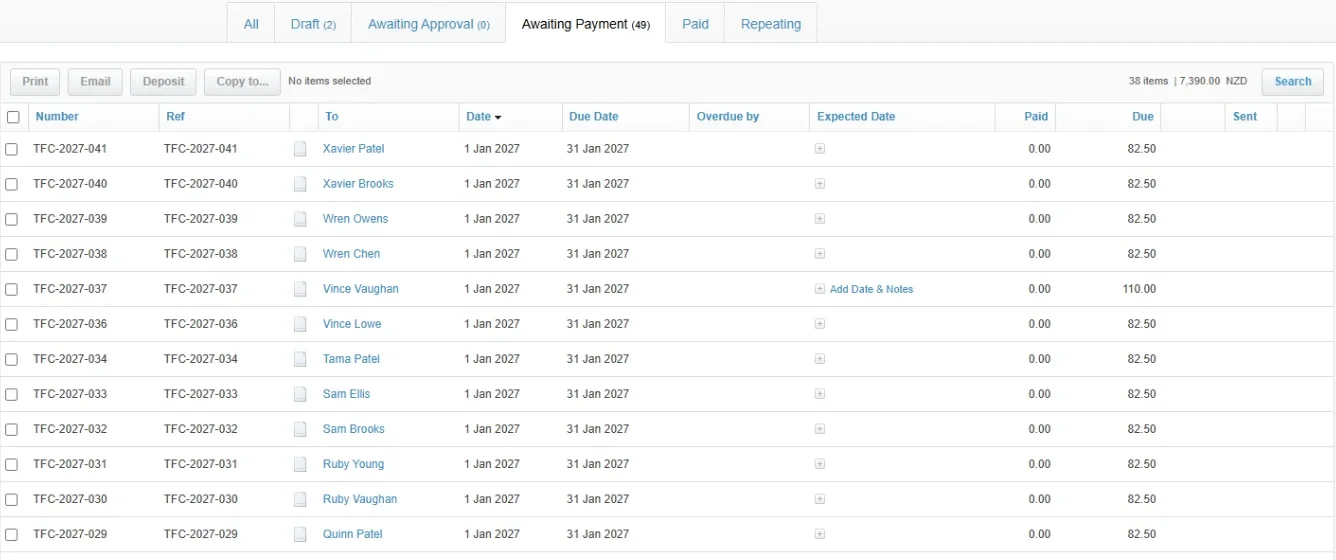
- Press Send to Xero. Subs not sent before become invoices, one per member, with their reference (such as TFC-2027-024). Subs already paid become payments against their invoice.
- Press it again any time, for example after more members pay: nothing is sent twice, only what's new.
Fstop shows what it sent, for example “Sent 38 new invoices and 1 new payment to Xero.” It can take a few seconds; the button says Sending to Xero… meanwhile.
Check in Xero under Sales → Invoices. Members who paid by card in Fstop show as paid; the rest show as awaiting payment until they pay. Waived subs aren't sent.
Questions
- Changing treasurer? The connection belongs to the club, not the person. If the old treasurer loses access to Xero, the new one presses Disconnect, then Connect Xero again with their own login.
- Stop sending? Press Disconnect on the Xero card. You can also remove Fstop in Xero under Settings → Connected apps. Nothing already in Xero is changed.
- Something went wrong? Fstop shows Xero's reason, usually an account code that doesn't exist or a tax type that doesn't match. Fix the setting and press Send to Xero again.
- Rather not connect? Each membership year still has Xero invoices (CSV) and Payments (CSV) to import into Xero by hand.